How to film a screen recording UGC video
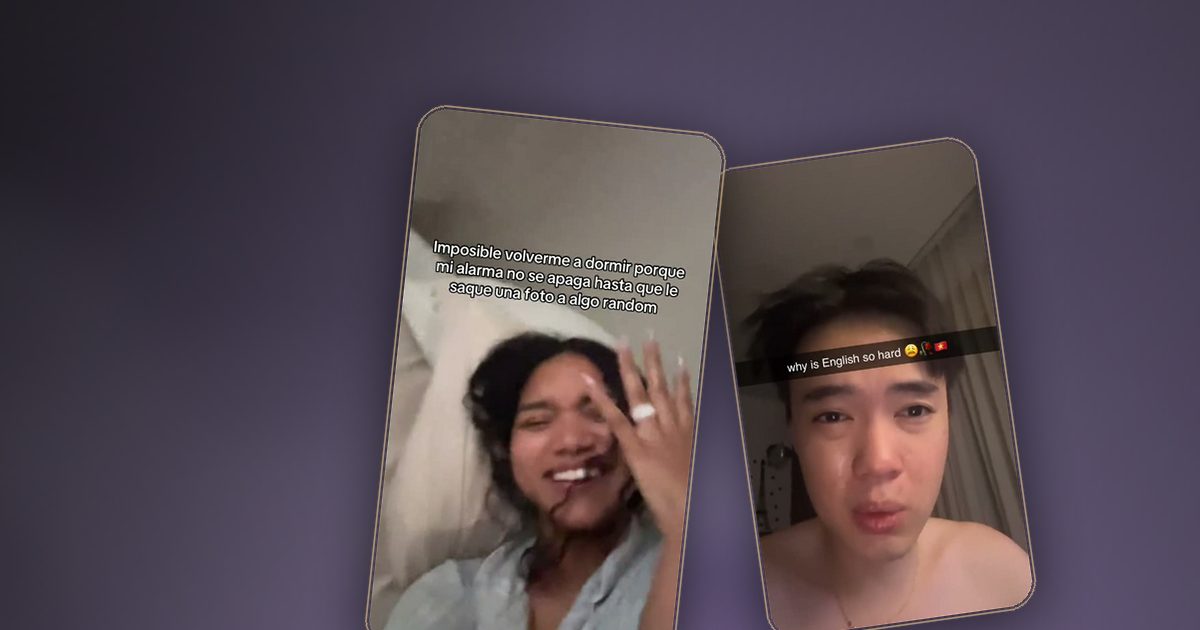
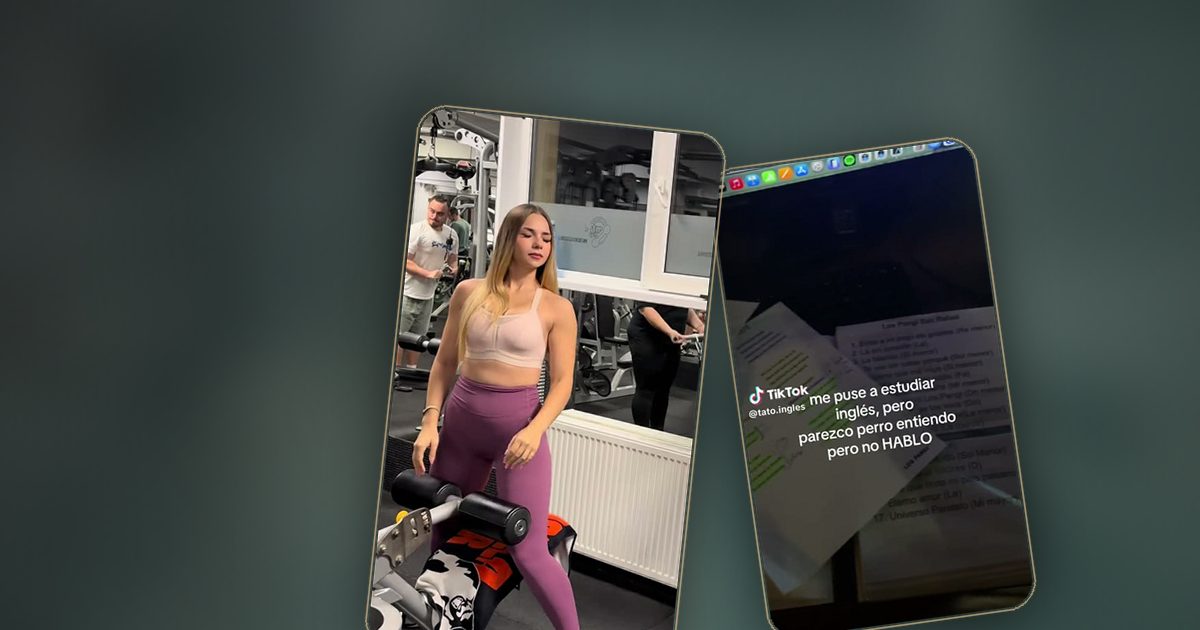
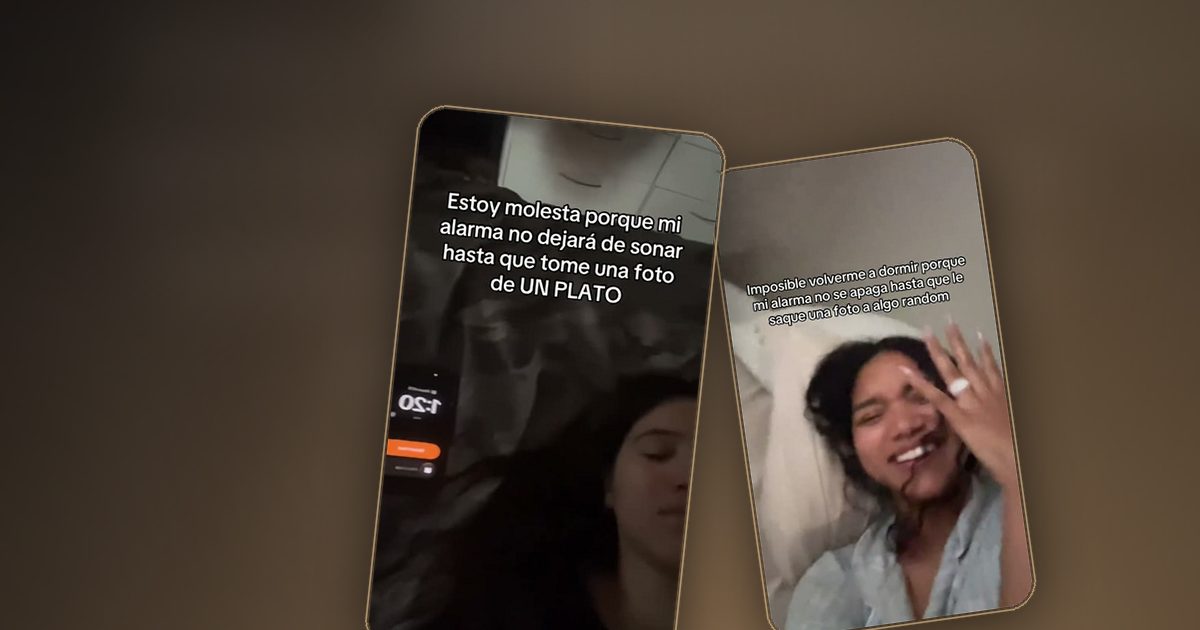
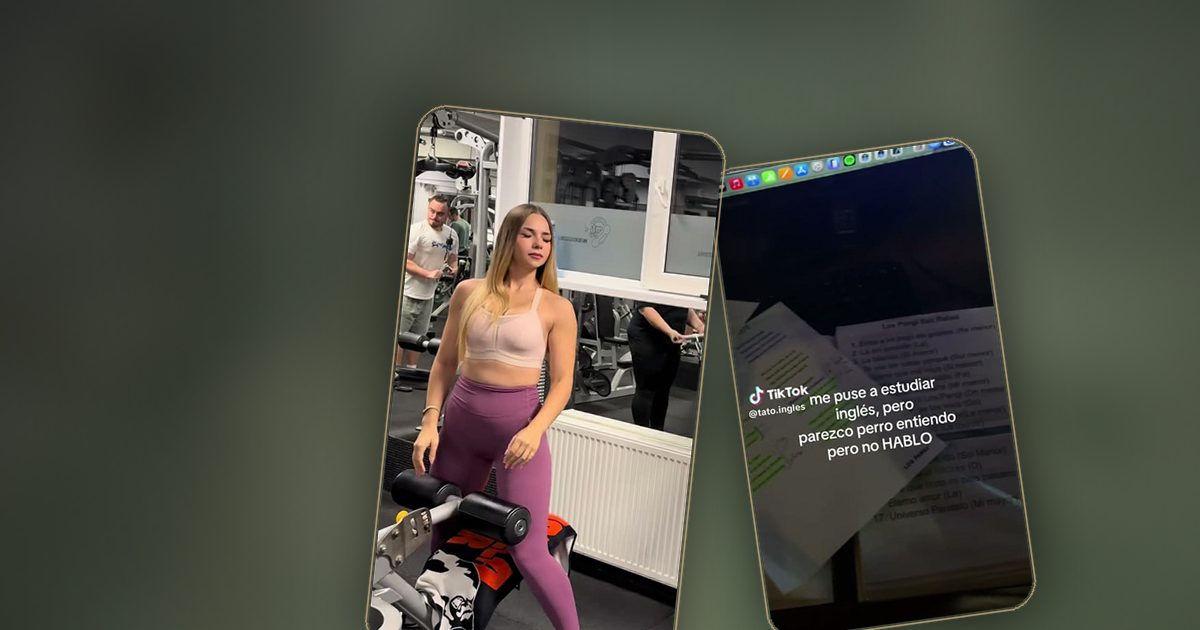
A screen recording UGC video shows an app on your phone while you explain what you are doing. It works when the first three seconds name a problem, the recording stays on one task and the voiceover sounds like a person talking, not reading.
Set up before you record
- Turn on Do Not Disturb so no notifications appear.
- Charge the phone and clear the home screen of anything personal.
- Use your phone's built-in screen recorder and test the audio first.
- Rehearse the steps once so you do not hesitate on camera.
Structure that works
- Hook: state the problem in one sentence.
- Show: do the task in the app, one step at a time.
- Result: show the outcome on the screen.
- Next step: tell the viewer what to do.
Voiceover tips
Record the voiceover in a quiet room, close to the microphone. Speak at the pace you would use with a friend. Keep sentences short so the viewer can follow the screen at the same time.
Common mistakes
- Showing three features in one video.
- Zooming too fast so text becomes unreadable.
- Letting the hook start with the brand name.
Once you have a clean sample, add it to your portfolio. See what to put in a UGC portfolio and learn more formats in UGC for apps.
Ready to get paid for your videos?
Apply once and we will match you with campaigns that fit your niche.
Apply as a creator